Advanced Button Response Test
Input Sequence Log
No active inputs detected.
As an Amazon Associate I earn from qualifying purchases.
Controller Button Test – Detect Stuck, Dead & Unresponsive Buttons
You press jump and nothing happens. Or your character fires without you touching the trigger. Or a bumper feels fine physically but the game ignores it completely. A controller button test tells you which input is the problem and whether it's fixable in software or needs a hardware repair.
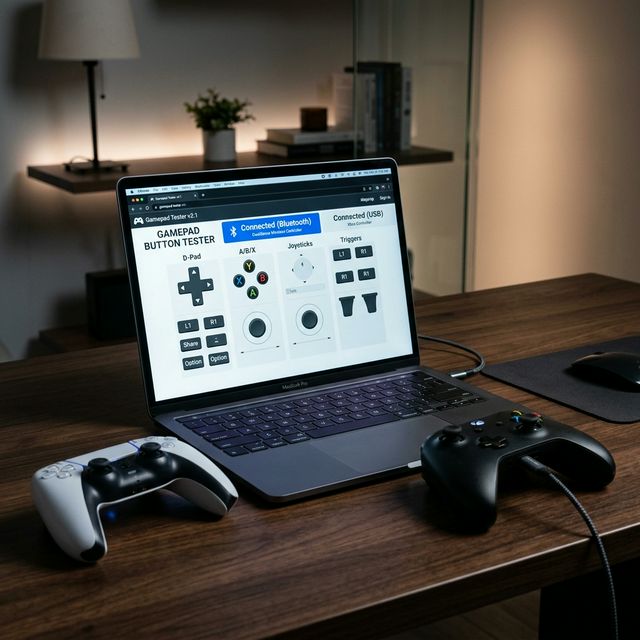
Every time you press an input, this diagnostic reads the raw signal from your hardware. It identifies whether the switch is dead, sticky (slow release), or suffering from "bounce" (double-registering). You get a clear visual pass/fail report for every single button, including bumpers, D-pad directions, and the often-ignored L3/R3 stick clicks.
Scroll up to the Button Tester and verify your controller health right now — every input is checked and color-coded in real time.
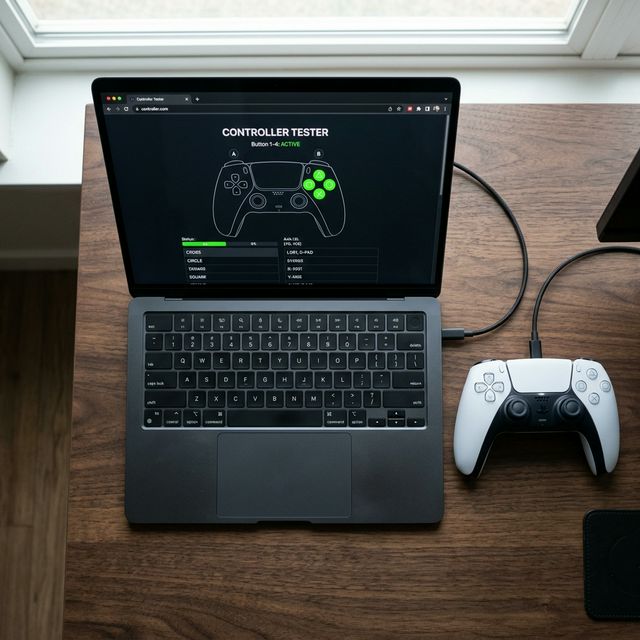
How the Controller Button Tester Works
The tool runs entirely inside your browser using the HTML5 Gamepad API, which reads raw input states directly from your hardware for zero-delay diagnostics.
Client-Side Processing
All processing happens locally on your device. Nothing is uploaded to any server, ensuring total privacy and near-instant response times.
Cross-Protocol Support
Supported across USB and Bluetooth for XInput (Xbox) and HID/DirectInput (PlayStation/Generic) hardware protocols.
High Polling Rate
The tool matches your display's refresh rate (typically 60Hz or higher) to catch input problems that standard software might miss.
How to Use the Controller Button Tester: Step-by-Step
Connect Your Controller
Plug in via USB or pair via Bluetooth. A wired connection is recommended for initial baseline testing.
Open and Allow Access
Open the tool page and click 'Allow' if prompted. Press any button to wake the controller for the browser.
Perform Full Input Pass
Press every button, trigger, and D-pad direction one by one. Move sticks in full circles to verify absolute range.
Review Registration Results
Watch for the visual highlight. You can run your button test as many times as needed to confirm findings.
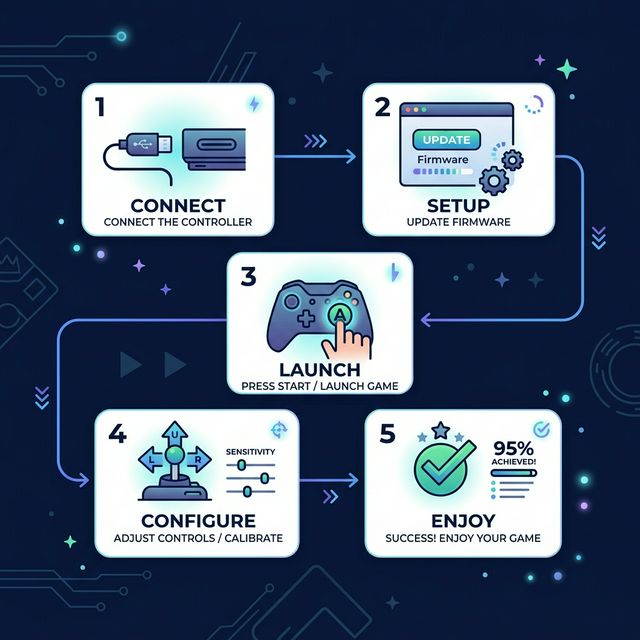
Once your controller is connected and detected, the entire test takes under two minutes. Use the free Controller Button Tester now.
Key Features for Precision Testing
Real-Time Visual Feedback
Every button highlights as you press it, showing response time in milliseconds. If it turns orange or red, the tool flags exactly why.
Multiple Test Modes
Diagnostic Mode for routine checks, Rapid Fire for bounce, and Endurance Mode for intermittent faults during long sessions.
Export Detailed Logs
Save results as CSV or JSON with timestamped rows. Perfect for tracking degradation or submitting warranty claims.
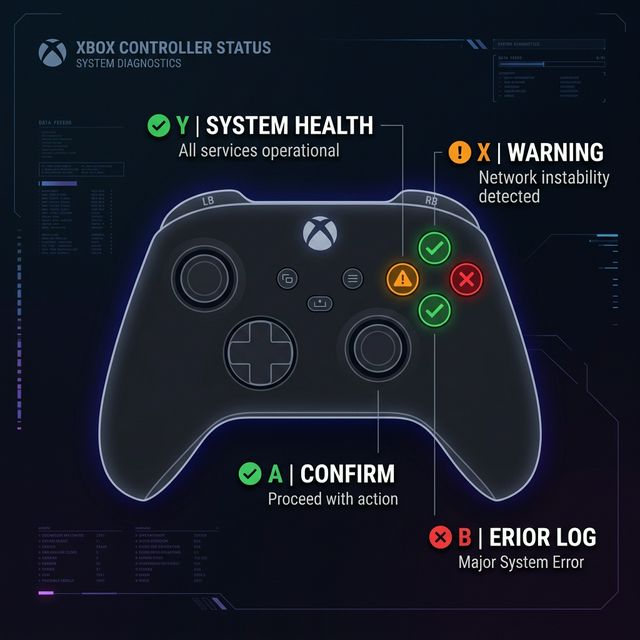
Diagnostic Results Explained
| Signal State | Physical Meaning | Required Action |
|---|---|---|
| Green: Pass | Clean registration with no bounce or timing delay. | Excellent condition. No action needed. |
| Orange: Sticky | The button is slow to release or registers twice (bounce). | Cleaning with compressed air or 90% ISO usually fix this. |
| Red: Failed | The button does not register at all or flickers erratically. | Hardware failure. Membrane or circuit trace needs repair. |
Who Should Use This Tool
Casual gamers can verify if a 'sticky' feeling is real before buying a replacement. Competitive players use it to ensure tournament-ready performance. Repair shops use export logs to document service success.
If you are buying a used controller, run a full gamepad diagnostic to catch hidden defects before paying. For tech enthusiasts, the millisecond data provides perfect benchmarking for different brand response times.
Why Button Testing Beats Guessing In-Game
Games use input smoothing and anti-bounce filters that mask mechanical problems. Hardware can be failing while the game compensates, leading to unpredictable missed inputs in critical matches.
By bypassing these filters, you can check your button inputs directly to isolate whether an issue is hardware-side, driver-related, or hidden in game settings.
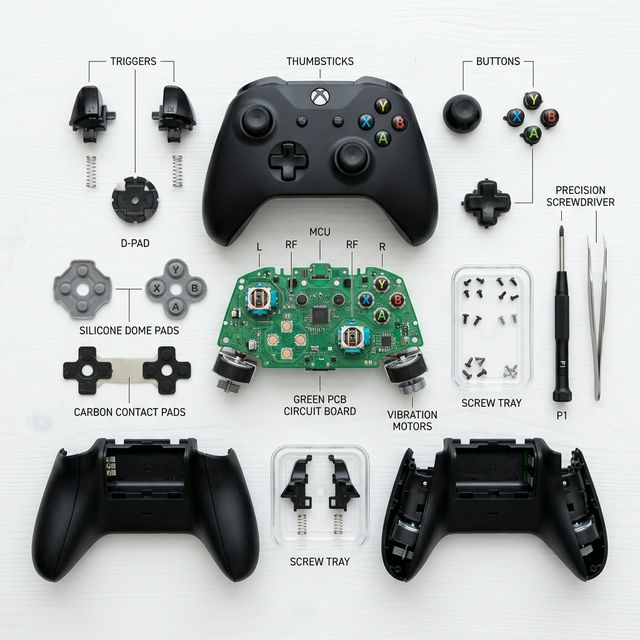
Common Reasons Buttons Stop Working
Dust and sweat buildup account for over 50% of button failures. According to forum insights from gpadtester.net and gamespadtester.com, basic contamination is the primary driver of unresponsive inputs. Over time, how controller components wear over time leads to carbon pad degradation or silicone dome fatigue. Simple cleaning with compressed air fixes roughly 40% of cases instantly.
Always start with a wired connection. Close apps like Steam Big Picture that might claim exclusive input access. If button issues persist, test your sticks for drift separately to get a complete health report for your gamepad.
Frequently Asked Questions
Ready for a Precision Check?
Don't guess whether your buttons are working. Get raw data and visual proof in under two minutes with our free online tool.