🎮 Precision Stick Drift Audit

Professional-grade real-time axis deviation analysis

🔌

Connect Controller to Begin

Plug in your gamepad via USB or Bluetooth and press any button to start the precision diagnostic test.

Stick Drift Test – Detect PS5, Xbox & Switch Controller Drift Free

Stick drift is one of the most frustrating controller problems a gamer can deal with. Your character walks forward on its own, the camera rotates without input, or your menus keep scrolling while you're trying to play. A stick drift test shows you exactly what your analog stick is doing when you're not touching it.

This diagnostic tool reads the live X/Y axis values from your analog joystick while it sits at rest. A healthy stick rests at or near (0, 0) when you are not touching it. When a stick drifts, the tool registers a non-zero offset, meaning the system thinks the stick is being pushed even though it is not. Those small offset values are what cause ghost input and unwanted in-game movement.

The tool connects to your controller through the built-in Gamepad API, pulling live data the moment a gamepad is recognized. Everything runs locally on your device, ensuring your results are private and instant.

If your character is walking on its own or your camera keeps drifting in one direction, this test reveals exactly how bad the drift is and what threshold you need to set to fix it.

Want to check your controller? Use the Stick Drift Test and see your X/Y readings right now.
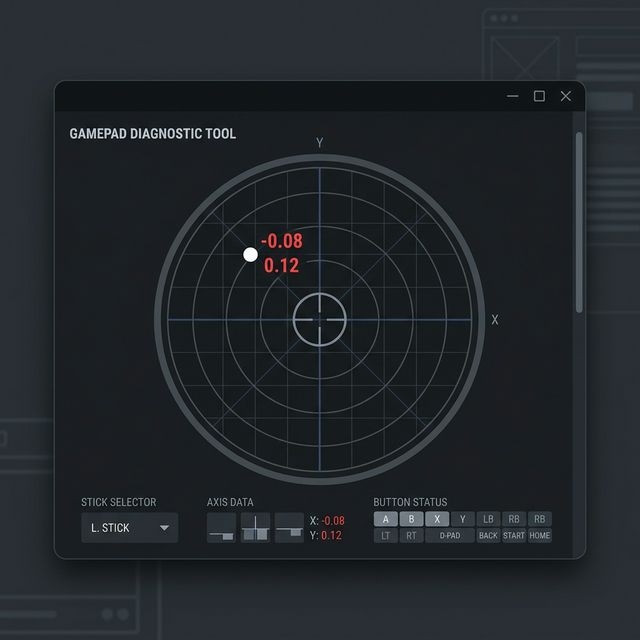
Stick drift test tool showing an analog stick offset in a browser window with live X Y axis data

How Stick Drift Happens

Stick drift does not appear randomly. It comes from specific physical or electrical problems inside the controller. Understanding the cause helps you decide whether cleaning, recalibration, or a full hardware repair is the right next step.

⚙️

Mechanical Wear

Physical components inside the stick module wear down over time, creating uneven resistance and inconsistent readings.

🧹

Contamination

Dust, debris, and oxidation settle on the internal sensor tracks, causing the controller to misread the stick position.

⚡

Sensor Failure

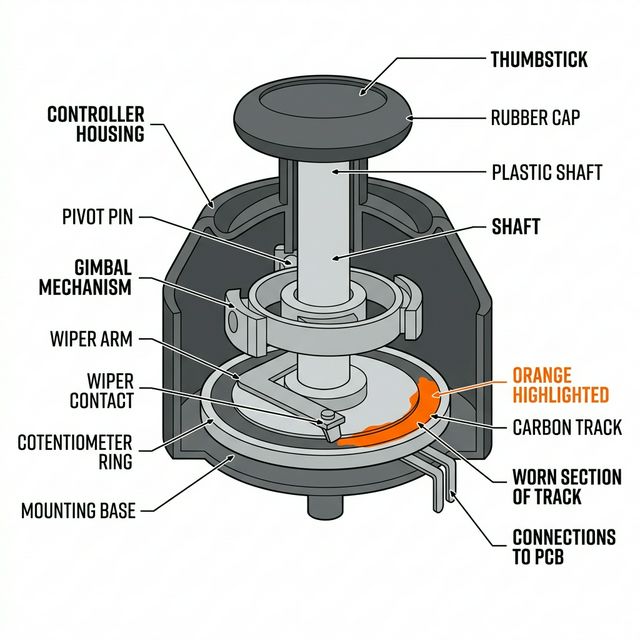
When the potentiometer tracks are damaged, the electrical signal fluctuates, leading to twitchy or constant ghost movement.

Technical diagram of analog stick internals showing potentiometer track wear which is a common cause of stick drift

Worn Potentiometers and Hall Effect Sensors

Most controllers use a potentiometer inside the analog stick to track position. The potentiometer track is a physical surface that a wiper slides across. Over time, that surface wears down, creating inconsistent readings. When the worn track skips or dips, the controller misreads the position and sends a false offset.

Hall effect sensors use magnets instead of physical contact, so there is no surface to wear down. Controllers built with hall effect magnets are far less prone to drift over time. If your controller has a potentiometer and drift is recurring, a repair-shop replacement or a hall-effect upgrade is a permanent fix.

Dust, Debris, and Oxidation

Dust inside the housing settles around the stick base and shifts sensor readings. For minor drift, blowing compressed air or using 90% isopropyl alcohol with a q-tip can dissolve residue. Move the stick through its full range to work the cleaner in, then let it dry fully before powering back on.

Reading Your Results: What the Numbers Mean

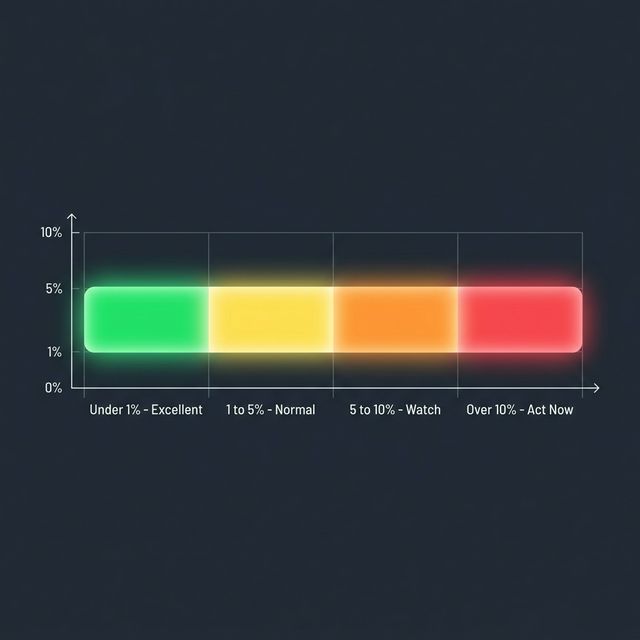
The tool measures drift as a percentage offset from perfect center. A reading of 0% is a theoretical ideal, not something you should expect from every controller in daily use.

Stick drift severity chart showing healthy status under 1 percent normal under 5 percent and critical ranges over 10 percent
Drift Percentage Condition Impact on Gameplay
Under 1% Excellent Perfect center. No action needed. Typical of new or Hall Effect controllers.
1% to 5% Normal Standard wear. Most in-game deadzones mask this automatically.
5% to 10% Watch Zone Noticeable in competitive games. Requires small deadzone adjustment.
Over 10% Critical Drift will interfere with character/camera movement at standard settings.

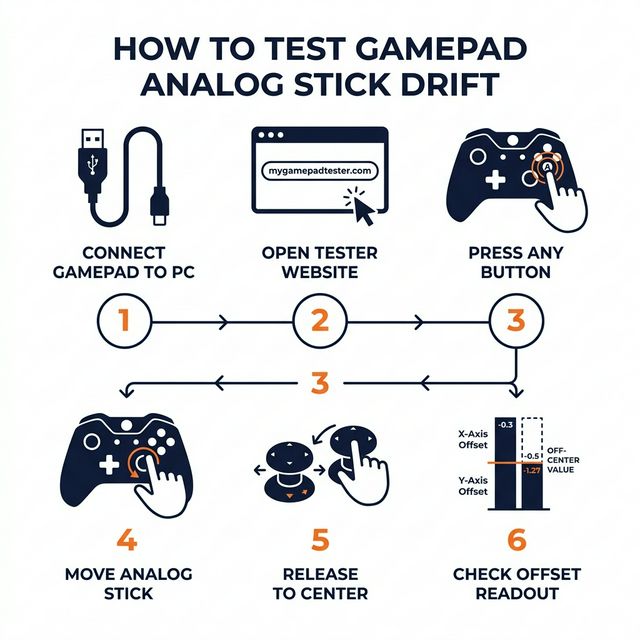
How to Use the Stick Drift Test online: Step-by-Step

1

Connect & Press Any Button

Plug in via USB or pair via Bluetooth. Press any button to wake the controller inside your browser.

2

Navigate to MyGamepadTester

Maintain focus on the browser tab to ensure the Gamepad API provides continuous live data.

3

Verify Live Input

Move both sticks once to confirm the crosshair responds instantly. If it doesn't move, restart your browser.

4

Rest Hands-Off

Release both sticks and let them sit naturally. Observe the X/Y readings for at least 20-30 seconds.

Step by step infographic for running a stick drift test online visiting mygamepadtester.com and verifying controller results

Ready to check your controller? You can run the stick drift test online right now without installing anything.

Why Your Controller Drifts in Games but Passes the Test

Temperature plays a role. Stick drift often becomes more pronounced as components heat up during sessions. If you test a cold controller, the readings might look fine. Test again after 30 minutes of gameplay. Signal noise from Bluetooth interference can also mimic drift.

Who Should Run This Test

This test is useful for anyone using a controller, but it is especially relevant if you are buying a used gamepad, verifying a recent repair, or troubleshooting drift in competitive games like Call of Duty, Apex Legends, or Rocket League.

Different types of controllers showing when to test for stick drift including competitive gaming and buying used

Quick Fixes to Try After Your Test

Adjust In-Game Deadzones

The fastest workaround. If your test shows 4% drift, set your in-game deadzone to 5% or 6% to absorb the false movement entirely.

Clean the Stick Base

Use compressed air or a tiny amount of 90%+ isopropyl alcohol on a q-tip around the ball of the analog stick to break up grime.

Recalibrate in Software

Both Windows, Steam, and console system menus offer stick calibration routines that can reset your center point.

For a permanent hardware fix, follow our stick drift repair guide for full teardown instructions.

Frequently Asked Questions

Readings between 0% and 5% are typical for controllers that have seen regular use. Most games apply a default deadzone that completely absorbs offsets in this range.

Yes. The test works with PS5 DualSense, PS4 DualShock 4, Xbox Wireless Controllers, Nintendo Switch Pro Controllers, Joy-Cons, and any standard PC gamepad.

No. The test runs entirely in your web browser using the standard Gamepad API. No downloads, extensions, or account creation required.

Some games have extremely tight or linear response curves that amplify tiny inputs. Additionally, temperature changes during gameplay can expand internal parts and worsen drift over time.

Often yes. Adjusting in-game deadzones is the simplest software fix. Cleaning around the analog base with compressed air or isopropyl alcohol can resolve debris-related drift.

No. All processing is client-side in your browser. Your input data stays entirely on your machine.

Google Chrome and Microsoft Edge provide the best Gamepad API support and are recommended.

Absolutely. It's one of the best ways to verify you aren't buying a degraded gamepad.

Don't Let Drift Ruin Your Rank.

The first step to fixing drift is knowing exactly how bad it is. Use the free diagnostic above to measure your exact offset.

Related Resources

Last updated: July 7, 2026