Free Mouse Aim Sensitivity Converter for Any Game
Join thousands of competitive gamers using MyGamepadTester to sync their aim across every title.
Maintain identical muscle memory across different engines.
What Is an Aim Sensitivity Converter?
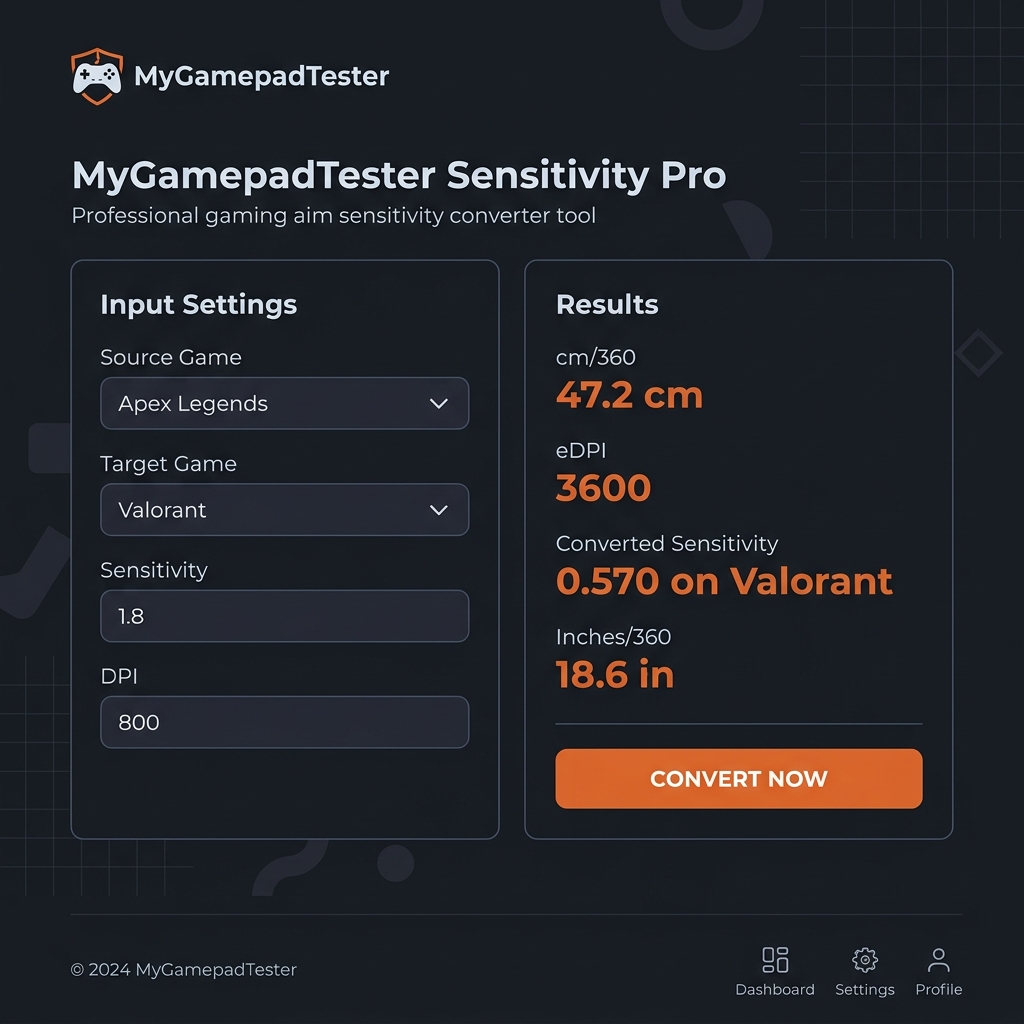
An aim sensitivity converter is a free browser tool that takes your sensitivity setting from one game and calculates the exact equivalent value for a different game. You enter your current game, your target game, your sensitivity, and your DPI — and the tool gives you the exact number to use in your new game. No math required, no guessing.
The whole point of this tool is to protect your muscle memory. Your brain and hands learn to aim based on a specific physical distance your mouse travels. When that distance changes because you switched games, your aim falls apart even though nothing about your actual skill changed. The Aim Sensitivity Converter on **MyGamepadTester** fixes that problem directly and instantly.
Why Your Sensitivity Feels Different in Every Game
Every game uses its own internal sensitivity language. A sensitivity of 2.0 in CS2 and a sensitivity of 2.0 in Fortnite produce completely different turn speeds because each game uses a different yaw multiplier. CS2 uses a yaw value of 0.022, while other titles like Apex Legends and Valorant use different values entirely. The same number in two games means almost nothing without accounting for this.
The issue goes deeper than just yaw. Games like Fortnite use Unreal Engine's proprietary slider method, which also depends on your field of view (FOV) setting. Others calculate horizontal and vertical mouse movement separately, meaning even a precise conversion might feel slightly off on vertical tracking. When you add ADS multipliers, zoom sensitivity settings, and differences in raw input handling, it becomes clear why manually guessing a converted sensitivity almost never feels right.
This is not a problem with your aim. It is a maths problem built into how game developers implement their sensitivity systems. Switching from Valorant to Warzone without converting is like trying to speak two languages with the same words and expecting to be understood. The **MyGamepadTester** aim sensitivity converter does the translation for you so your crosshair movement stays physically consistent across every title in your rotation.
Scientific studies on how action video games enhance sensorimotor learning show that physical consistency is a key factor in skill retention.
How the Aim Sensitivity Converter Works
The process follows a straightforward input-to-output path. You give the tool three pieces of information: your source game, your DPI, and your current in-game sensitivity. The tool then uses each game's known yaw value to calculate how many centimeters your mouse physically travels to complete a full 360-degree rotation. It then finds the sensitivity value in your target game that produces that exact same physical distance.
That physical travel measurement is called **cm/360**. It is the universal standard that professional players use to compare sensitivity across all games and hardware. The tool also displays your eDPI (which is simply your DPI multiplied by your in-game sensitivity) and your in/360 for quick reference. All results update in real time as you type. You can use the aim sensitivity converter directly in your browser with no account or download needed. The formulas used are based on verified sensitivity and yaw values for major PC games tested across multiple titles, not rough estimates.
How to Use the Aim Sensitivity Converter: Step-by-Step
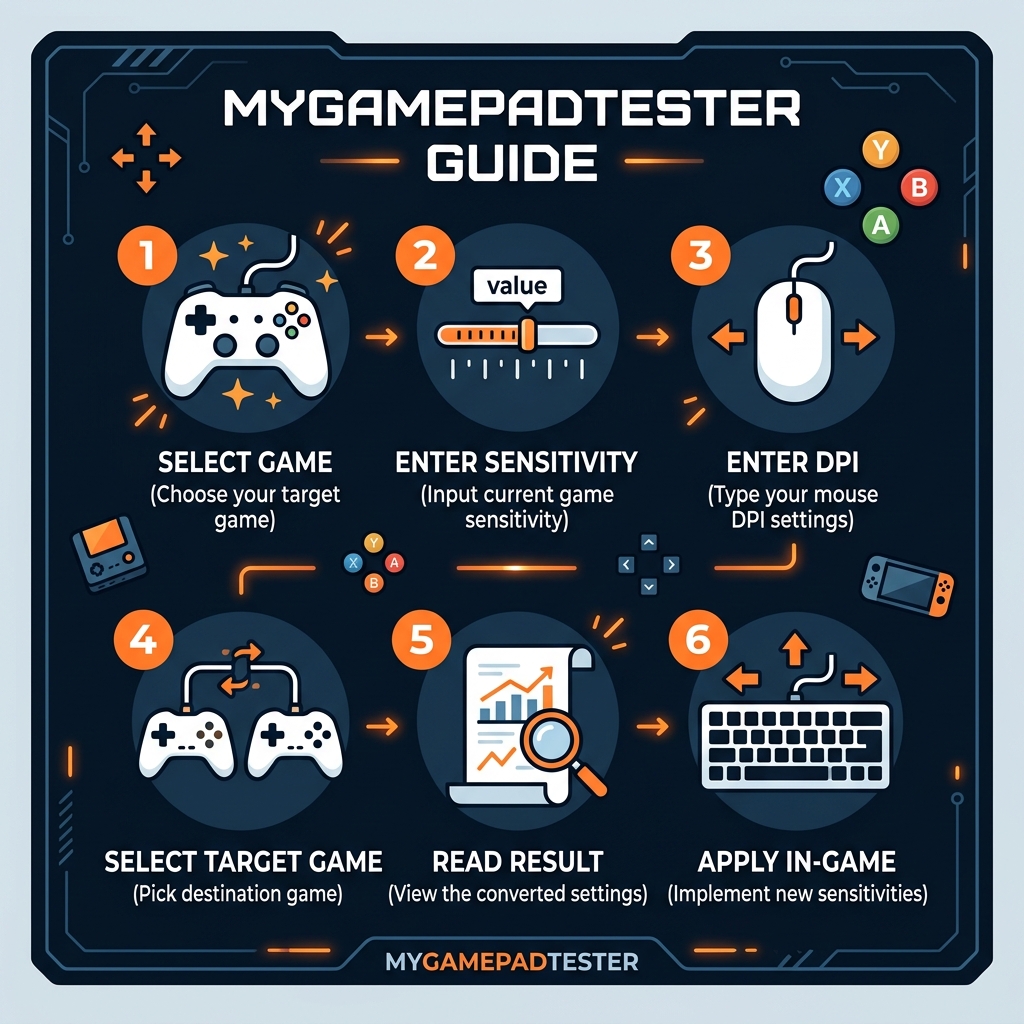
- Select your source game from the dropdown. This is the game where your current sensitivity already feels right.
- Enter your current sensitivity value. Copy it directly from your in-game settings to avoid typos.
- Enter your DPI. Check your mouse software if you are unsure. If you do not know your DPI, you can leave this field empty and still get a conversion.
- Select your target game from the second dropdown. This is the game you want to convert into.
- Read your result. Your converted sensitivity appears automatically along with your cm/360 and eDPI values.
- Apply the setting in your game, then head to a practice mode or training range to confirm it feels right before jumping into ranked.
After completing these steps, you should feel an immediate difference compared to guessing. Your flick shots and tracking will feel familiar because your physical mouse movement now produces the same rotation it always has.
Key Features of the Aim Sensitivity Converter
Instant Real-Time Conversion
The converter calculates your result the moment you finish typing. There is no submit button to click. This matters when you are switching games mid-session and just need the number fast. Input your values and your converted sensitivity is displayed before you can switch windows.
cm/360 and eDPI Display
Beyond the converted sensitivity number, the tool shows you your cm/360 and eDPI alongside the result. This is useful because cm/360 is the most reliable way to compare aim feel across games and hardware. Knowing your cm/360 also helps you communicate your sensitivity settings to teammates or coaches.
DPI Change Support
If you are also switching to a new mouse with a different DPI, the tool handles that too. Enter your current DPI and your target DPI side by side and the converter scales your sensitivity so your cm/360 stays identical. This makes the tool useful not just for game switching but also for mouse upgrades.
Common Mistakes That Break Your Conversion
The most common error is forgetting to update your DPI in the converter. If you use 800 DPI in one game and 1600 in another and enter neither value, your result will be wrong. Sensitivity conversion depends heavily on DPI, so double-check this every time you switch. A related mistake is using a random online calculator that does not use accurate, verified yaw values.
A separate problem catches many Windows users off guard: **Enhanced Pointer Precision** is enabled by default and it acts as hidden mouse acceleration. When this setting is active, your mouse cursor travels different distances based on how fast you move. You should learn how to turn off Enhanced Pointer Precision in Windows before you rely on any conversion.
For controller players, stick deadzone settings can create a similar inconsistency. If your analog stick has physical drift, your converted sensitivity will not behave as expected. You can test your controller's deadzone to rule out any stick calibration issues first.
MISTAKE CHECKLIST
- ❌ Leaving DPI Blank (Inaccurate result)
- ❌ Acceleration ON (Inconsistent turn distance)
- ❌ Wrong Calculator (Unverified math)
- ❌ Ignoring FOV (Perceived speed shift)
Why Converted Sensitivity Still Feels Slightly Off
If you use the converter correctly and your aim still does not feel quite right, that is normal and it has specific causes. The most documented one is FOV differences between games. Field of view differences (even by as little as 3 degrees) means a mathematically perfect cm/360 conversion can still feel subtly different because your visual frame is slightly wider or narrower.
Other factors include game engine differences in how input polling works, whether aim assist or ADS multipliers are active, and whether the game uses separate sensitivity values for horizontal and vertical movement. Beyond the numbers, your brain is also used to the feedback from your old game. Allow yourself 1 to 2 hours of play with the new sensitivity before deciding it needs adjustment. If something still feels off, you should check your input lag to see if your hardware response time is created inconsistency.
Tips to Get the Best Results
The single most effective habit is using the same DPI across all your games. When your DPI stays constant, the converter only has one variable to deal with: sensitivity. This keeps your cm/360 stable and your muscle memory development clean. In Windows settings, make sure mouse acceleration is disabled entirely. Set your polling rate to 1000Hz if your mouse supports it.
Practice your new sensitivity in Aimlabs or Kovaak's before competitive play, using the same converted value you would use in-game. Avoid changing both DPI and sensitivity at the same time. Stick with your converted settings for at least a few weeks before making changes. You can convert your aim sensitivity right now and apply it immediately.
Ready to lock in your settings?
Once your settings are locked in, you only need a few seconds to get your converted number every time you switch games.
Go to Converter ToolWho Should Use This Tool
Competitive and ranked players are the most common users. If you grind ranked in Valorant but also play CS2, Apex Legends, or Warzone on the side, keeping your sensitivity consistent across all of them is what keeps your aim sharp. Every time you play with a different physical mouse distance, you are partially overwriting the muscle memory you built in your main game.
Streamers and content creators who play multiple titles mid-broadcast benefit just as much. Players upgrading to a new mouse with a different DPI also need this tool to transfer their existing feel cleanly. Controller players switching between PC and console setups can use it to match their rotational sensitivity too. If you use a gamepad, you can calibrate your joystick to make sure your analog stick is reporting accurate position data.
IDEAL FOR: This utility is designed for competitive ranked grinders who need precise mechanics across multiple games, multi-title streamers who switch games mid-broadcast, hardware upgraders moving to a new mouse, and hybrid players moving between controller and mouse-and-keyboard setups.
Aiming FAQ
Does the converter work without knowing my DPI?
Yes. You can leave the DPI fields empty and the converter will still calculate a conversion based on your in-game sensitivity values alone. The conversion is less precise without DPI because it cannot calculate your exact cm/360, but it gives you a working starting point.
Why does my converted sensitivity still not feel right?
This is a known issue. FOV differences between games are the most common one — two games with a perfect cm/360 match can still feel slightly different if their default FOV settings vary. Game engine differences in how input polling is handled, and whether aim assist is active, can also contribute.
What is cm/360 and why does it matter?
cm/360 is the physical distance your mouse travels to complete a full 360-degree turn in-game. It is the most reliable metric for comparing sensitivity across different games and hardware because it measures something real and physical.
Can I convert sensitivity when switching to a new mouse with different DPI?
Yes. Enter your current DPI in the source field and your new mouse's DPI in the target field. The tool recalculates your in-game sensitivity value so your physical cm/360 stays the same on the new hardware.
Does FOV affect my sensitivity conversion?
FOV affects how sensitive your game feels visually. A wider FOV makes movement appear slower while a narrower one makes it feel faster. After converting, confirm your in-game FOV settings are similar in both titles.
Should I disable mouse acceleration before using the converter?
Yes, always. Mouse acceleration makes your cursor travel different distances depending on speed, which undermines the predictable linear relationship used in conversion. Disable Enhanced Pointer Precision in Windows Mouse Settings.
Is the aim sensitivity converter free to use?
Yes, the **MyGamepadTester** tool is completely free. There is no account required, no download, and no paywall. Use it in any modern browser for instant results.
My game isn't listed. What should I do?
If your game is missing, try using a title that runs on the same game engine (e.g., Source Engine titles often share yaw values). You can also contact us to request the game be added.
Explore Professional Hardware Tools
Related Resources
- Deadzone Tuning Guides — Step-by-step repair guides
- Why Pro Gamers Lower Deadzones — In-depth analysis & data
Last updated: July 7, 2026