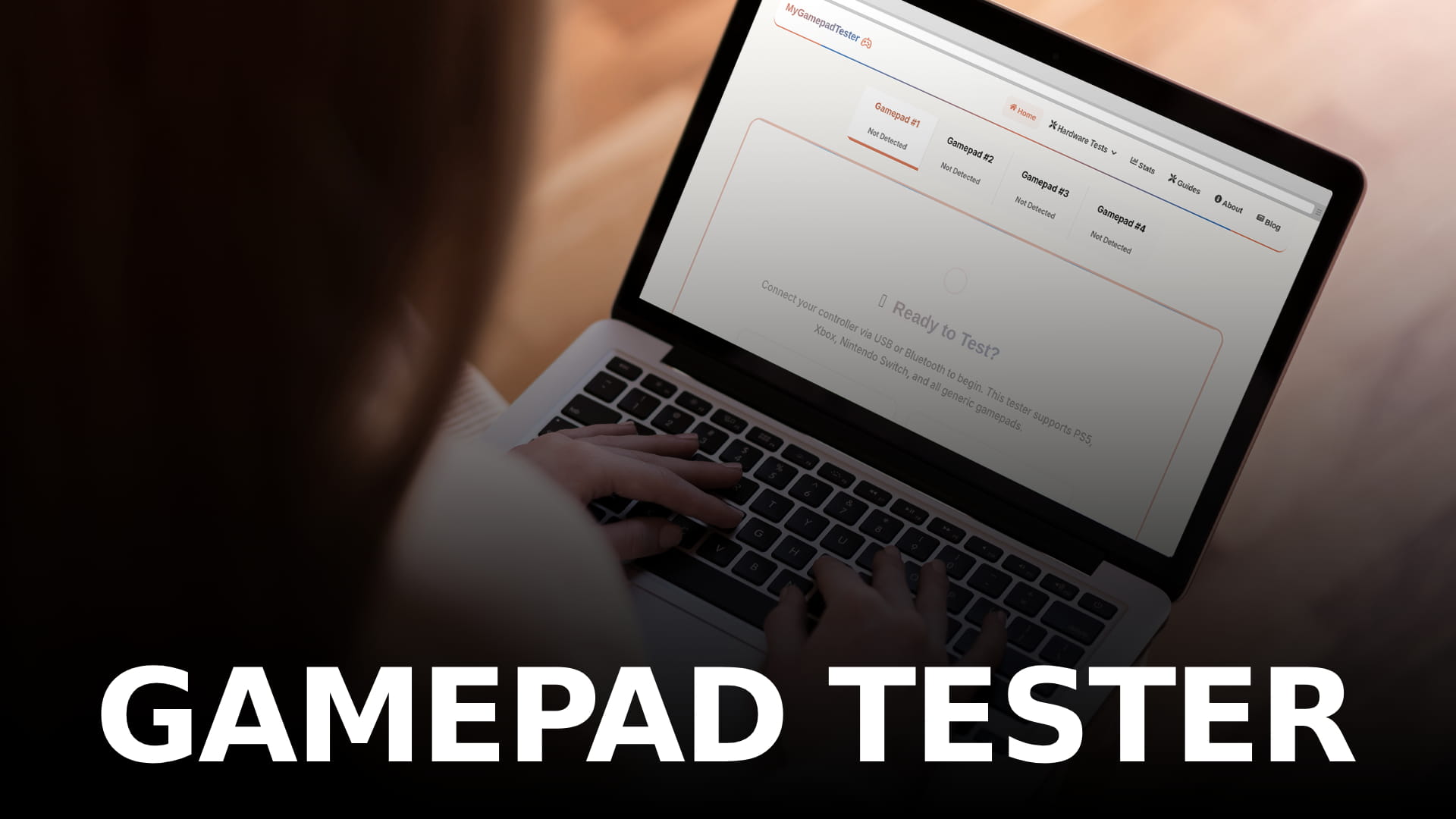
A gamepad tester is a page that reads your controller's raw input directly in your browser and shows it back to you as live numbers and moving indicators: every button press, every stick position, every trigger pull, as it happens. No software to install, no account, nothing to trust beyond your own browser. You plug in or pair a controller, press a button, and watch a dot on screen move the instant you do.
That sounds simple, and the test itself is simple. What's worth understanding is why it works without installing anything, what it can actually tell you about a controller's health, and what it genuinely cannot see, because treating a gamepad tester as either a toy or a diagnostic oracle both miss what it's actually good for.
How a browser-based gamepad tester works
Every modern browser implements the W3C Gamepad API, a standard that gives a web page direct, low-level access to connected controllers without any plugin or native app. The browser handles the USB or Bluetooth communication underneath, decodes the HID report your controller sends dozens of times per second, and exposes the result as a simple object: an array of button states and an array of axis values, updated continuously.
One quirk of the standard trips people up the first time they use any gamepad tester, not just this one. The API will not report a connected controller until you interact with it. Plugging a controller in and staring at an empty page is normal; press any button or move a stick once, and the page populates immediately. This is a deliberate privacy decision built into the standard, not a bug, so controllers can't be silently fingerprinted by a page you never meant to grant that information to.
Because this all runs through the browser rather than custom drivers, a gamepad tester works identically across PS5, Xbox, Switch Pro, generic USB pads and most Bluetooth controllers, with no setup difference between them. The one real exception is Android, which has its own OS-level HID controller layer sitting beneath the browser. A controller can navigate Android's interface perfectly while a browser-based tester sees nothing, because the browser never got the raw signal at all. That split is itself useful diagnostic information if you're troubleshooting rather than confusing, and our guide on testing a controller on Android covers the workaround.
What testing actually checks, and why each part matters
Buttons. The simplest check: every face button, bumper, d-pad direction and stick click should register exactly once per press, with no missed presses and no doubled inputs. A button that doesn't register at all is usually a dead switch or worn contact. A button that fires twice from one press is a different problem entirely, closer to the switch bounce that affects worn mouse buttons than a simple dead input.
Sticks. This is where most of the genuinely useful information lives. A stick's resting position should sit at dead centre with your thumb off it. If it doesn't, that's stick drift, and the exact numeric offset tells you how severe it is, which matters more than it sounds: a drift of a few percent is often invisible in play and fixable with a small deadzone adjustment, while a large offset means the mechanical wear has gone further and software compensation will only mask it for a while. Our guide on what stick drift actually is breaks down the mechanism and what the numbers mean for how much life a stick has left.
Full deflection matters too. Pushing a stick to its mechanical limit in each direction should trace something close to a circle, not a square or a pinched diamond. A tester that shows you the raw path, rather than just four extreme points, is the only way to actually see this.
Triggers. Analog triggers should read 0 at rest and climb smoothly to 100 at full pull, with no dead spot partway through and no jump from one value straight to another. A trigger that hangs at a nonzero resting value, or clips before reaching full travel, behaves identically to stick drift just on a different axis, and it's just as diagnosable the same way.
Vibration and haptics. A tester with a rumble test confirms the operating system can actually drive your controller's motors at all before you spend time troubleshooting a specific game's settings. If a controller doesn't rumble anywhere, that's a platform or driver problem; if it rumbles in the tester but not in one specific game, the problem lives in that game. Our full guide on testing controller vibration covers both cases.
Polling rate and timing. Less commonly checked but worth understanding: how often your controller reports its state to the PC, measured in Hz. Higher isn't automatically better past a certain point, and our explainer on what polling rate actually changes covers where the real benefit tops out versus where it's just a bigger number on a box.
Testing different kinds of controllers
The core mechanism is identical across hardware, but a few controller types have their own quirks worth knowing before you start.
DualSense and DualShock 4 pads expose a touchpad and, on the DualSense, adaptive trigger resistance alongside the standard buttons and sticks, none of which older testers built only for generic XInput pads will show correctly. Xbox controllers are the simplest case: consistent HID reporting, no proprietary extras to account for, which is part of why they're often used as the reference point other pads get compared against. Switch Pro Controllers and Joy-Cons report over Bluetooth with their own quirks around motion data and, in the Joy-Con's case, testing each half independently matters since a drift problem on one side is easy to miss if you only ever test them as a connected pair. Third-party pads from 8BitDo, GuliKit and similar brands are the least predictable of the group, since button mapping and axis order sometimes differ from the XInput standard depending on which compatibility mode the pad is switched to.
Racing wheels, flight sticks and fight sticks all use the same underlying API but report far more axes and buttons than a standard gamepad, which is why a tester built around a simple two-stick layout often can't display them usefully. Dedicated testers for that hardware class exist for exactly this reason, built to show every axis a wheel or HOTAS setup actually reports rather than assuming a controller shape that doesn't match.
When testing is actually worth doing
Four situations where running a controller through a tester tells you something you'd otherwise be guessing at.
Before a warranty or return window closes. A controller a few weeks old that already shows a small resting drift offset is worth documenting and acting on now, while it's still covered, rather than after it's gotten bad enough to notice during a match.
Buying used. A seller's word that a controller "works fine" tells you nothing about stick centring, dead triggers, or a d-pad direction that's gone intermittent. Two minutes with a tester before you hand over money catches all of it.
Diagnosing a specific in-game problem. When something feels wrong in a game, a tester answers the first and most important question: is this the controller, or is this the game. A camera that drifts in one title but not in a tester with the stick at rest points at the game's deadzone settings, not your hardware.
Routine maintenance. Drift and trigger wear develop slowly enough that your hands adapt before you consciously notice. Testing every couple of months and comparing against your own earlier baseline catches a small offset while it's still a two-minute deadzone fix, long before it's a replacement.
What a gamepad tester can't tell you
Worth being honest about the limits, because overclaiming here helps nobody. A browser tester reads what the controller reports, not what's happening inside it mechanically, so it can tell you a stick has drifted but not whether that's dust, a worn potentiometer wiper, or something else, since all three produce the same symptom in the numbers. It also can't measure true end-to-end input latency from your physical press to a photon changing on screen, only the interval between successive reports, which is a related but genuinely different number. And it can't diagnose a game's own input handling, deadzone curves, or sensitivity settings, since those live entirely in software the tester has no access to.
None of that makes the browser-based approach less useful, it just means a tester is the first diagnostic step rather than the last one. It tells you exactly where to look, and whether what you're looking at is worth acting on now or just worth watching.
Reading the numbers without guessing
The raw output of a tester is just numbers and moving bars, and it's easy to stare at a stick axis reading "3" at rest and not know if that's nothing or a real problem. As a working rule: single-digit percentage offsets on a resting stick are common and usually below the threshold where you'd notice in play, offsets in the high single digits to low double digits are worth setting a small deadzone for, and anything that keeps climbing over weeks rather than holding steady is mechanical wear progressing rather than noise. Our deeper breakdown of what gamepad tester numbers actually mean goes through this threshold by threshold, for sticks, triggers and buttons alike.
Getting the most accurate result
A few habits make a real difference in whether a test session actually reflects your controller's health rather than a one-off fluke.
Test wired when you can, at least once, so Bluetooth connection quality isn't a variable in what you're seeing. Let the controller sit untouched for a few seconds before reading a resting stick value, since some sticks settle slightly after you let go rather than reading true centre instantly. Test each input in isolation first, then test combinations, since a problem that only appears when two inputs are pressed together usually points at the controller's internal wiring rather than a single failed component. And if something looks wrong, test again on a different USB port or a different device entirely before concluding the controller itself is at fault, since a flaky port or adapter can produce symptoms that look exactly like a hardware fault but aren't.
Frequently Asked Questions
Q: Do I need to install anything to use a gamepad tester?
Q: Why doesn't my controller show up until I press a button?
Q: Can a gamepad tester detect stick drift?
Q: Does a gamepad tester work the same on every platform?
Q: Can a tester tell me if my controller needs to be repaired?
Free Online Gamepad Tester
Test your controller for drift, deadzones, and input lag — no download required.
Launch Tester →