This is the frustrating one. The controller is connected, Windows sees it, the lights are on, and yet the game does nothing when you move the sticks or mash buttons. Because the controller clearly "works," people waste time re-pairing it and updating drivers when the real problem is almost always in the software layer between the controller and the game: Steam Input, the game's own controller settings, or a mismatch in how the game expects to read the pad. Here's how to find and fix it.
Step 1: Prove the controller itself is fine
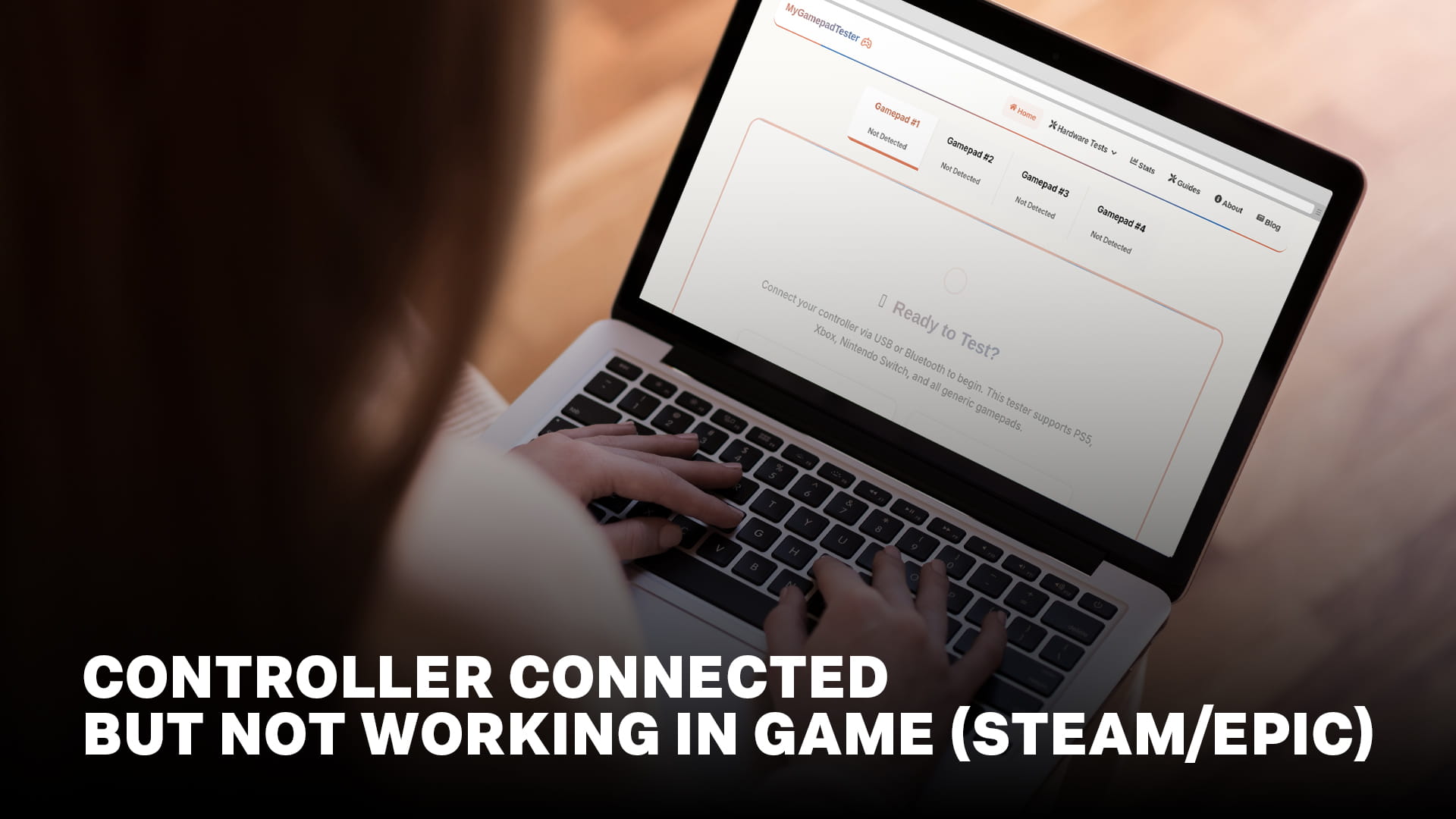
Before touching game settings, confirm the hardware and connection are genuinely working, because it changes everything about where you look next. Open a browser-based gamepad tester and press buttons and move the sticks.
If the tester responds to your inputs, the controller, cable, drivers, and connection are all fine. The problem is entirely inside the game or its launcher, and the rest of this guide applies.
If the tester shows nothing, the problem is upstream (connection or detection), not the game, and you should troubleshoot the connection itself before going further. In that case this isn't really a "works everywhere but one game" situation.
Assuming the tester reacted, let's fix the game.
Step 2: The Steam Input toggle (fixes most cases)
Steam Input is the single most common reason a working controller does nothing in a game, and it cuts both ways: some games need it on, others break when it's on.
Steam Input is a layer that intercepts your physical controller and presents the game with a virtual, remappable controller instead. When it's configured right, it's great. When it's misconfigured, or when a game reads controllers its own way and Steam Input's virtual pad conflicts, the game sees nothing usable.
To toggle it: in Steam, right-click the game > Properties > Controller. Change "Override for [game]" between "Enable Steam Input" and "Disable Steam Input," then relaunch and test. Try both. This one setting resolves a large share of dead-controller-in-game reports.
As a rule of thumb: games with native controller support (most big modern titles) often work best with Steam Input disabled, so they read the pad directly. Older games, or ones with no controller support built in, need Steam Input enabled so Steam can feed them a controller they understand. When in doubt, flip it and relaunch.
Step 3: Check the game's own controller settings
Plenty of games have an in-game toggle for controller support, or an input-mode setting that has to match your pad. Dig into the game's Options > Controls or Input menu and look for:
A master "enable controller/gamepad" switch that might be off. Some games default to keyboard-and-mouse and ignore a controller until you explicitly enable it.
An input-device selector. A few games make you pick "controller" over "keyboard," or won't switch until you actually press a controller button on a specific screen.
A controller-type setting (Xbox vs PlayStation). Usually cosmetic for button prompts, but occasionally tied to whether the game reads the pad at all.
Restart the game after changing these. Some apply the setting only on a fresh launch.
Step 4: Understand XInput vs DirectInput
This is the technical root of a lot of controller trouble. Modern games speak XInput, the standard Xbox controllers use. Older games use the legacy DirectInput standard. A controller that only presents as DirectInput (some third-party and older pads) will be invisible to an XInput-only game, and vice versa.
Xbox controllers are natively XInput, which is why they "just work" most often. PlayStation and Switch controllers aren't XInput by default, which is exactly why tools like DS4Windows and Steam Input exist: they translate a PlayStation or Switch pad into a virtual Xbox (XInput) controller the game understands. So if a specific game refuses your DualSense or Pro Controller but takes an Xbox pad fine, you've found an XInput-only game, and enabling Steam Input (or DS4Windows) to emulate Xbox input is the fix.
Step 5: Kill double inputs and conflicts
If your controller does something but wrong, like every button firing twice or menus scrolling on their own, you've got two input layers active at once. This happens when Steam Input and a separate mapper (DS4Windows, DualSenseX, third-party software) are both feeding the game, or when the game reads both the raw controller and the emulated one.
The fix is to collapse to a single input path. Either use Steam Input alone (close the other mapper) or use the mapper alone (disable Steam Input for that game). If you need to force it, hide the physical controller from games so only the emulated one gets through, using DS4Windows' hide toggle or the more persistent HidHide tool. Our guide on eliminating input lag on PC makes the same core point from a performance angle: every extra layer in your input chain is a chance for something to go wrong, so keep it lean.
Step 6: The Epic Games and other-launcher wrinkle
Games launched outside Steam don't get Steam Input, which changes the picture. An Epic Games Store, GOG, or standalone game relies on its own native controller support plus whatever Windows and any mapper you're running provide.
If a controller works in Steam games but not Epic games, that's the tell: you were leaning on Steam Input, and the Epic version has nothing translating your non-Xbox pad. Two fixes. First, use an Xbox controller for the Epic game, since it's XInput-native and needs no translation. Second, run DS4Windows (for PlayStation pads) or a similar mapper to emulate an Xbox controller system-wide, so the Epic game sees XInput regardless of launcher. You can also add the Epic game to Steam as a non-Steam game and launch it through Steam to borrow Steam Input, though results vary.
Step 7: Clean up drivers and background software
If a controller works in the tester and in some games but erratically in others, leftover or conflicting software is a likely cause. Close any controller utilities you're not actively using; running DS4Windows, DualSenseX, Steam, and a game's own remapper simultaneously is asking for conflicts. If you've installed and uninstalled controller tools repeatedly, a clean reinstall of the one you actually use rebuilds its virtual drivers correctly. For controllers acting up specifically on Windows 11, our Windows 11 controller calibration guide walks through resetting the OS-level controller configuration.
Step 8: The player-order and multiple-controller trap
One overlooked cause: the game is reading a different controller than the one in your hands. If you have more than one controller connected, or a virtual controller (from DS4Windows or a steering wheel or a capture device) that Windows counts as a gamepad, the game may be listening to controller "player one" while your real pad is player two or three.
Disconnect everything except the controller you want to use, close background apps that create virtual controllers, and relaunch. In games that show a controller-slot or player-number screen, make sure your pad is assigned to the active slot. This is a frequent culprit in couch-co-op games and on setups with a wheel, HOTAS, or capture card permanently plugged in, because those register as input devices and quietly claim a slot.
Confirm and move on
Once the game responds, do a final sanity check so you're not about to hit a different wall mid-session. Run the sticks through the joystick calibration page to confirm they read cleanly, since a controller that works but drifts will feel broken in-game for reasons that have nothing to do with Steam Input. If everything reads clean and the game now responds, you're done.
The short version
Test the controller first: if the browser tester reacts, the problem is 100% software. Then flip Steam Input on or off and relaunch, because that fixes most cases. Check the game's own controller toggle. Remember that PlayStation and Switch pads need something translating them to XInput for many games, which is why Epic and other non-Steam launchers often need DS4Windows or an Xbox pad. And collapse to a single input layer to kill double inputs. Diagnose in that order and you'll rarely need anything else.
Frequently Asked Questions
Q: My controller works in Windows but not in my game. Why?
Q: Should Steam Input be on or off?
Q: Why does my PlayStation controller work in Steam games but not Epic games?
Q: What causes double inputs where every button presses twice?
Q: How do I know if it's the game or the controller?
Free Online Gamepad Tester
Test your controller for drift, deadzones, and input lag — no download required.
Launch Tester →