The DualSense is one of the best controllers you can plug into a PC, right up until Windows refuses to see it. The frustrating part is that the controller is genuinely plug-and-play at the hardware level, so when it won't connect, the cause is almost always one of a small, predictable set: a dead cable, a pairing that won't take, software fighting over the controller, or a driver that needs a nudge. Here are eight fixes, ordered so the fastest and most likely land first.
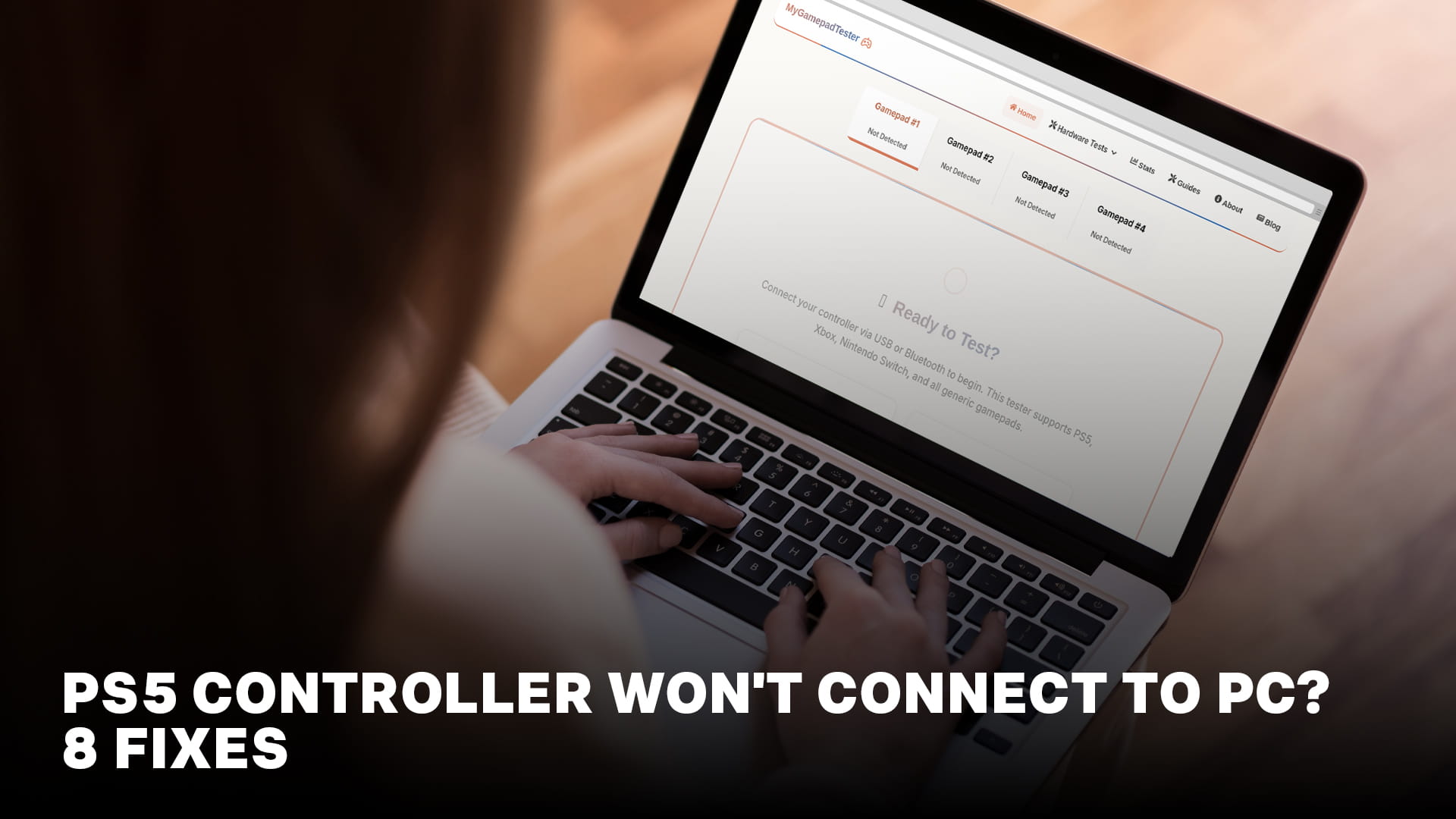
Quick note before you start: "won't connect" and "connects but does nothing in games" are different problems. Once Windows shows the controller, open a browser button test and press a few buttons. If the tester reacts, your connection is fine, and the issue is game-side. If nothing shows up even here, keep working down this list.
Fix 1: Swap the USB cable (it's usually the cable)
Plug the DualSense into your PC with a USB-C cable and listen for the Windows connection chime. Nothing? The cable is your prime suspect, by a wide margin.
Many USB-C cables, especially the short ones bundled with phones, earbuds, and power banks, are charge-only and carry no data. The controller will light up and charge but never appear as an input device, which looks exactly like a connection failure. Swap to a cable you know transfers data, and plug directly into a rear motherboard port rather than a front-panel port or a hub. This one swap resolves a huge share of "won't connect" reports, so never skip it.
Fix 2: Put it in Bluetooth pairing mode correctly
If you want wireless, the DualSense pairs over standard Bluetooth, so any PC with Bluetooth 4.0 or newer handles it. Desktops without built-in Bluetooth need a USB adapter, and quality matters here, since cheap dongles cause the dropouts people later blame on the controller.
To enter pairing mode, the controller must be fully off first. Then hold the PS button and the Create button (upper-left of the touchpad) together for about five seconds until the light bar flashes in a rapid double-blink. That flash means it's discoverable. On the PC, open Settings > Bluetooth & devices > Add device > Bluetooth and select "Wireless Controller."
The most common reasons this fails: the controller wasn't fully off before you started, so it never entered pairing mode cleanly, or a stale pairing from a previous session is interfering. If it won't appear, remove any old "Wireless Controller" entry from your Bluetooth list, then pair it again.
Fix 3: Reset the controller
A DualSense that refuses to pair or behaves erratically often needs a reset, particularly one recently used on a PS5 or phone. On the back near the Sony logo is a tiny hole. Push a straightened paperclip in, hold the recessed button for about five seconds, then reconnect over USB and press the PS button. This clears the controller's pairing memory and internal state, and it fixes a surprising number of "connects to nothing" cases.
Fix 4: Confirm Windows sees the hardware
If neither cable nor Bluetooth gives you a working controller, find out whether Windows detects the hardware at all. Right-click Start > Device Manager, then plug and unplug the controller while watching "Human Interface Devices" and "Sound, video and game controllers." If a device appears and disappears as you connect it, Windows sees the hardware and your problem is software, so jump to Fix 6. If nothing changes at all, it's a cable, port, or hardware issue, so revisit Fixes 1 and 3 and try a different port.
Fix 5: Rule out a weak Bluetooth adapter
If it pairs but constantly drops, or connects then disconnects within seconds, the culprit is almost always the Bluetooth adapter rather than the controller. Cheap dongles are unreliable, and placing an adapter right next to a USB 3.0 port creates radio interference that disrupts Bluetooth specifically. Move the adapter onto a short USB extension cable, away from other ports, and make sure the controller is charged, since low battery also causes drops. If wireless stays flaky, test wired to confirm the controller itself is sound. Our breakdown of wired vs wireless input covers why a solid connection matters beyond just staying paired.
Fix 6: Decide whether you even need DS4Windows
Here's where a lot of confusion lives. DS4Windows makes Windows treat your DualSense as an Xbox controller, because some games only understand Xbox-style (XInput) input and ignore a PlayStation pad. That's its entire job.
But you often don't need it. Windows and Steam both support the DualSense natively now, and most modern games read it fine on their own. So try nothing first: plug in the controller and launch your game. If it works, don't install DS4Windows at all, because it can only add complications. Install it only when a specific game refuses to see your DualSense, or when you want system-level button remapping.
Fix 7: Stop DS4Windows and Steam from fighting
If you do run DS4Windows, Steam has a behavior that trips people up: when it detects DS4Windows running, it deliberately ignores real and virtual PlayStation controllers, assuming you're emulating an Xbox pad and trying to prevent double inputs. Usually this is invisible, but it means your DualSense can't drive Steam's own interface while DS4Windows runs, and some games break.
The rule that avoids all conflict: pick one input path, never two. Either let Steam handle the controller natively with DS4Windows closed, or run DS4Windows and disable Steam Input for that game (right-click the game > Properties > Controller > "Disable Steam Input"). Running both untuned is what produces the classic double-input bug, where one press registers twice. If you're getting double inputs, hide the physical controller so only the emulated one reaches games, using DS4Windows' "Hide DS4 Controller" toggle or the more persistent HidHide tool. One tradeoff to accept: DS4Windows emulation disables the DualSense's adaptive triggers and haptics, because those are PlayStation-specific and don't survive translation to an Xbox controller.
Fix 8: Clean up the drivers
If Windows sees the controller but it behaves strangely, a corrupt or duplicate driver may be the cause. In Device Manager, uninstall the DualSense-related entries (check "delete the driver software" if offered), unplug the controller, reboot, and reconnect so Windows reinstalls cleanly. If you've installed and removed controller tools repeatedly, leftover virtual drivers like ViGEmBus can confuse things too, and reinstalling DS4Windows freshly usually rebuilds them.
Wired or wireless once it's working?
Once both methods connect, wired is the safer default on PC for most people. It sidesteps every Bluetooth headache at once: no pairing to lose, no dongle quality lottery, no dropouts mid-match, and the lowest latency the DualSense can deliver, while keeping the controller charged. The only cost is the tether. Wireless is fine for couch play and slower games, where a few milliseconds and the small dropout risk don't matter, but a good Bluetooth adapter is the single biggest factor in whether wireless is smooth or maddening. If you play competitive shooters, wired removes a variable entirely, which is why many PC players keep a long braided USB-C cable for the controller and never touch Bluetooth again.
Common mistakes that look like a connection failure
A few things regularly get mistaken for a controller that won't connect. Testing with a charge-only cable is the big one, since the controller charges but never registers, which looks identical to a dead connection. Trying to pair while the controller is only asleep rather than fully off is another, because it never enters pairing mode cleanly. Assuming a desktop has Bluetooth when it doesn't is common too; many towers have no radio at all without an adapter. And expecting a controller that's still actively paired to a phone or PS5 to connect to the PC at the same time won't work, because it holds one Bluetooth host at a time. Ruling these out first saves a lot of pointless driver reinstalls.
Confirm the fix before you game
Once the controller connects, verify it actually works. Open the joystick calibration page and run the sticks through their range, then check triggers and buttons. Sixty seconds here tells you the controller is fully functional, so if a game still misbehaves afterward, you know the problem is the game's settings rather than your DualSense. If you want the full rundown of DualSense quirks on any platform, our DualSense troubleshooting guide covers connection alongside battery and trigger issues.
Frequently Asked Questions
Q: Why does my DualSense charge on PC but not connect?
Q: Do I need DS4Windows to use a PS5 controller on PC?
Q: Why do I get double inputs with DS4Windows and Steam?
Q: How do I put a PS5 controller into pairing mode?
Q: My DualSense keeps disconnecting over Bluetooth. Why?
Free Online Gamepad Tester
Test your controller for drift, deadzones, and input lag — no download required.
Launch Tester →