8BitDo controllers are among the most popular third-party options available today. Models like the SN30 Pro, Pro 2, and Ultimate combine nostalgic retro designs with modern hardware, including rechargeable 1000mAh batteries delivering up to 20 hours of playtime and multi-platform support covering Nintendo Switch, Windows, Android, and more. The key hardware difference on newer models is the use of Hall Effect joysticks, which rely on magnetic sensing rather than physical contact, making them far more resistant to stick drift than older potentiometer-based ALPS sticks. If you are stepping into this ecosystem for the first time, this guide walks you through every setup step, every connection method, and every way to verify that your controller is fully working before you load a single game.
Understanding the Mode Switch Before You Connect Anything
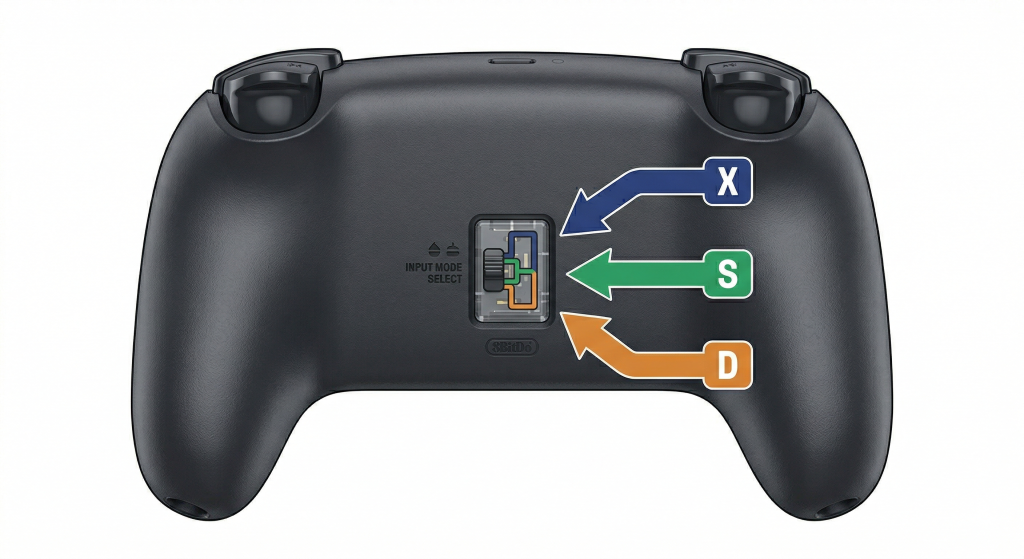
The single most important thing to know before you plug in or pair your 8BitDo controller is the physical toggle switch on the back. This small switch sets the firmware protocol the controller broadcasts to whatever device it connects to. Getting this wrong is the cause of most setup problems people run into, and fixing it takes about three seconds once you know what each position does.
X Mode vs S Mode vs D Mode Explained
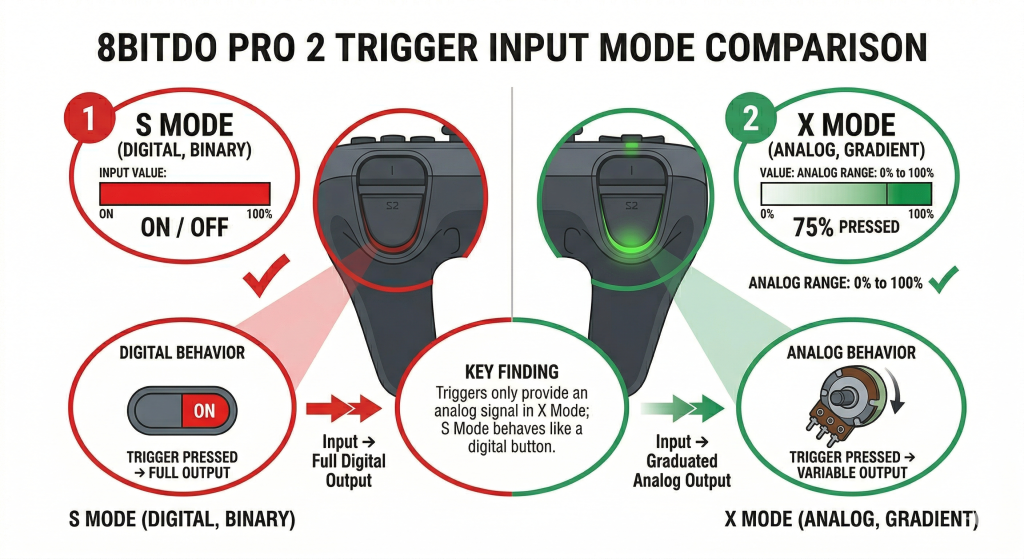
X mode puts the controller into XInput, which tells Windows and games you are using an Xbox 360-style controller. This is the correct setting for 99% of PC gaming. Games on Xbox Game Pass, Epic Games Store, and Ubisoft Connect all detect it instantly with no extra software. In X mode, your triggers also function as true analog inputs, reading from 0% to 100% pressure, which matters in racing games. S mode mimics a Nintendo Switch Pro Controller. Use this only on PC if you specifically need gyro aiming through Steam Input in a shooter. D mode is a legacy DirectInput standard designed for Android devices. Modern Windows games largely ignore DirectInput entirely, so leaving the switch on D on a PC will often result in the controller connecting but nothing responding in your game.
How to Connect Your 8BitDo Controller to a Windows PC
Your 8BitDo controller offers three connection methods on Windows: Bluetooth, wired USB, and the 2.4G wireless receiver. Each has its place, and all three work without purchasing any extra software.
Bluetooth Setup on Windows 10 and 11
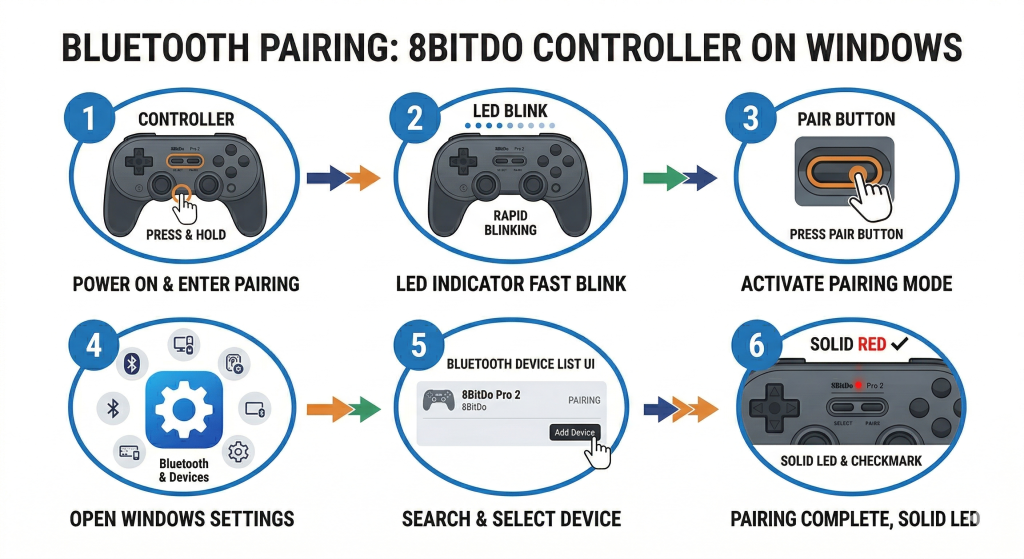
- Flip the mode switch on the back of the controller to X.
- Press Start to power on. LEDs 1 and 2 will begin to blink.
- Hold the pair button on the front face of the controller for 3 seconds. The LEDs rotate from left to right, signaling pairing mode. This step is only required the first time.
- On your PC, go to Settings > Devices > Bluetooth and other devices. Toggle Bluetooth on.
- Select Add Device > Bluetooth, then choose your controller from the list (for example, “8BitDo Pro 2”).
- The LEDs go solid when the connection is confirmed.
After this, the controller reconnects automatically with a press of the Start button. Your PC must be running Windows 10 version 1703 or later and have Bluetooth 4.0 support.
Wired USB Setup on Windows
- Set the mode switch to X.
- Press Start to power on.
- Plug in the included USB-C to Type-A cable directly into a USB port on your PC, not through a hub. Using a powered USB hub can cause power draw issues that prevent recognition.
- Wait for Windows to detect the controller. It installs the XInput driver automatically with no extra steps.
Use a data-capable cable, not a charge-only cable. If Windows does not respond, try a different USB port before troubleshooting further.
2.4G Receiver Setup on Windows
- Plug the 2.4G dongle into a USB port on your PC.
- Set the mode switch to X for XInput mode, or D for DInput.
- Power on the controller by pressing Start. The dongle detects it automatically and the LEDs go solid.
The 2.4G receiver provides a stable wireless connection with less interference than Bluetooth in busy signal environments. Once you have the dongle running, you can test your controller online in your browser to confirm every input is registering before you load your game.
How to Connect Your 8BitDo Controller to Nintendo Switch
Connecting to the Switch requires enabling a setting that Nintendo hides by default and is easy to miss.
Bluetooth Pairing with Switch
- On your Switch, go to System Settings > Controllers and Sensors and turn on Pro Controller Wired Communication.
- Set the mode switch on your controller to the Bluetooth position (marked with a Bluetooth icon on Ultimate models).
- Press Home to power on. The LEDs will cycle from left to right.
- On the Switch, go to Controllers > Change Grip/Order and wait for the controller to appear. The LEDs go solid when pairing completes.
Once paired, the controller wakes the Switch from sleep by pressing Home. Shaking the controller also wakes the console. Note that NFC, amiibo, IR sensor, and HD rumble are not supported by most 8BitDo models.
Connecting via 2.4G Receiver to the Switch Dock
- Plug the 2.4G receiver into a USB port on the Switch dock.
- Power on the controller. It should connect immediately if already paired.
- If this is your first connection, hold Minus + LB for 5 seconds. The controller will vibrate briefly and enter Switch mode.
One important note from community reports: Switch firmware updates have occasionally broken 8BitDo adapter compatibility. If your controller suddenly stops working after a console update, check the 8BitDo firmware page for a matching adapter update. Until a patch releases, users have found a workaround: search for a controller via the Switch controller menu each time the console boots to force re-recognition.
How to Confirm the Controller Is Working Correctly After Setup
After connecting your controller, do not assume everything is working just because the LEDs are solid. A stuck deadzone, a button that failed to register, or a trigger reading as digital instead of analog can all go unnoticed until mid-game. Run a quick check across all inputs before you start playing. Open a browser and run a full controller diagnostic to see every button, both analog sticks, both triggers, and vibration motors respond in real time. Look for any input that lights up without you pressing it, any button that fails to register on press, and any stick that does not return cleanly to the center position after you release it.
Updating 8BitDo Firmware: Why It Matters and How to Do It
Firmware updates fix real bugs. The official changelog on 8BitDo’s site lists fixes for analog drift after wake from sleep, ZL/ZR not working with certain button combos on Switch, Steam receiver enumeration failures, and vibration issues in specific games. Keeping firmware current is not optional if you want stable performance.
To update firmware:
- Download the firmware update tool from the 8BitDo support site and find the correct .dat file for your exact model.
- Hold L + R + Start on the controller to enter update mode. The LED on top will blink red.
- Plug the controller into your PC via USB. Connect it directly to a port on the motherboard, not through a USB hub. A bad flash is more likely through a hub.
- Open the update tool, click USB Upgrade, and select the .dat firmware file.
- Wait for the process to complete without disconnecting the cable.
- Unplug the controller and restart it before using.
One community member on the MiSTer FPGA forum reported that a corrupt initial firmware flash caused severe power draw that crashed their PC on restart. They resolved it by downloading the oldest available firmware, flashing that first, then upgrading again cleanly. If a new firmware introduces problems, downgrading to the previous version is a legitimate fix while you wait for a patch.
Common Problems Users Run Into and How to Fix Them
Most 8BitDo connection issues trace back to the mode switch or a pairing state that got stuck. The fixes below are drawn directly from forum threads where users confirmed what worked and what did not.
Controller Paired But Not Recognized
If Windows shows the controller as paired but no game responds to it, the mode switch is almost always in the wrong position. D mode uses DirectInput, which modern Windows games do not support. Steam even crashes repeatedly when you try to reconnect a controller in Switch mode without re-pairing each session, according to multiple Steam Community reports. Fix: flip the switch to X, go to Bluetooth settings on Windows, select Remove Device, and pair again from scratch. Windows will install the “Xbox 360 Controller for Windows” driver and games will detect it immediately.
Triggers Not Registering as Analog on PC
If your throttle does not work in Forza or your triggers feel binary in a shooter, you are almost certainly in S mode. Nintendo Switch Pro Controllers do not have analog triggers, so S mode disables the pressure-sensitive range of your ZL and ZR buttons. Flip the switch to X and reconnect, then you can test your triggers in real time to confirm the full 0-to-100% analog range is now reading correctly.
Stick Drift on Older 8BitDo Models
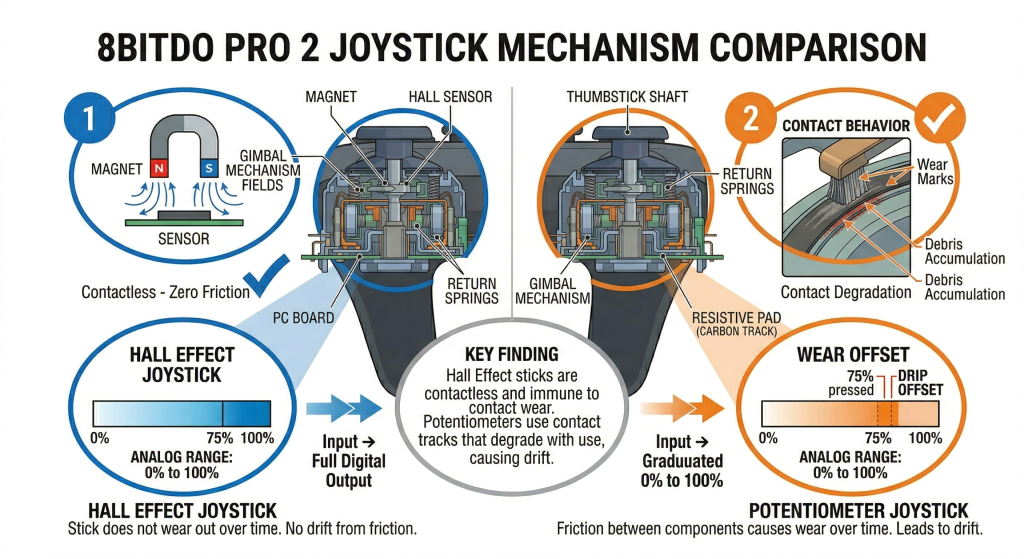
Newer 8BitDo controllers use GuliKit Hall Effect joysticks, which do not suffer from the contact wear that causes drift on older potentiometer-based ALPS sticks found in earlier SN30 Pro models. If you own an older model, drift is a hardware limitation of the stick module, not a firmware problem. Before assuming the worst, you can check your stick drift with live axis readouts to see whether the offset from center is constant or only appears under pressure. A constant offset at rest suggests genuine drift; an offset only during fast movements may point to a deadzone calibration issue instead.
Bluetooth Disconnects Mid-Session
Bluetooth at 2.4GHz shares spectrum with Wi-Fi routers, microwaves, and nearby wireless devices. If your controller drops out repeatedly, move closer to your PC and remove any solid obstructions between them. A USB hub with multiple devices can also cause power and signal instability. Switching to the 2.4G receiver or a wired USB cable eliminates this entirely. If you want to compare how much latency you are actually experiencing wirelessly versus wired, you can measure your input lag in milliseconds to see the real difference before deciding which connection to keep.
How to Customize Your 8BitDo After Setup
The 8BitDo Ultimate Software is free and gives you control over settings that most controller manufacturers lock away. Download the PC app when connected via USB or 2.4G receiver. Use the mobile app when the controller is connected to a console via Bluetooth.
Key things you can configure: deadzone settings for both sticks and triggers, vibration intensity for each rumble motor, button remapping for every face button, and assignment of macros or face-button shortcuts to the P1 and P2 back paddles. You can also build multiple profiles and switch between them for different games. One thing the software cannot do is assign a keyboard key like “R” to a paddle directly. To achieve that you need Steam Input layered on top. After adjusting your stick deadzone in the software, use a joystick calibration tool in your browser to verify the changes took effect and your sticks are returning cleanly to their center position.
Frequently Asked Questions
Does the 8BitDo controller work with Steam?
Yes, it works well in X mode (XInput). Steam detects it as an Xbox controller and applies full button prompts and haptics where supported. In S mode (Switch Pro emulation), Steam can crash on reconnect after the controller is turned off and back on, a known issue reported by multiple users. Stay in X mode unless you specifically need gyro input, in which case pair fresh each session.
What mode switch setting should I use on PC?
Use X mode for virtually all PC gaming. It activates XInput, which Windows and modern games support natively. D mode is for Android devices and DInput-only applications. S mode is for gyro via Steam Input only, and it disables analog triggers as a side effect.
Why are my triggers not analog after setup?
You are in S mode. Nintendo Switch Pro Controllers have digital-only triggers, so 8BitDo replicates that behavior in S mode. Flip the switch to X, reconnect, and your ZL/ZR buttons will function as full analog inputs again.
Can I use an 8BitDo controller on Switch wirelessly?
Yes. Enable Pro Controller Wired Communication in Switch System Settings first, even for wireless connections. This setting must be on for the Switch to recognize third-party controllers in both Bluetooth and 2.4G modes.
Do I need to install drivers for 8BitDo on Windows?
No additional drivers are required if you are using X mode. Windows installs the XInput driver automatically when you pair or plug in the controller. The 8BitDo Ultimate Software is optional customization software, not a required driver.
Does 8BitDo support rumble on Nintendo Switch?
Standard rumble works on Switch, but HD rumble (the high-definition haptic feedback used in first-party Nintendo games) is not supported. Standard vibration motors function normally, and you can adjust intensity through the Ultimate Software.
What does the LED pattern mean on my 8BitDo controller?
A slow blink means the controller is searching for a connection. A fast blink means it is actively in pairing mode. A solid LED means it is connected. LEDs rotating from left to right means it is in Bluetooth pairing mode waiting for a host device to accept it.
Why does my 8BitDo controller keep disconnecting?
The most common causes are Bluetooth interference from nearby devices, distance from the PC, and USB hubs limiting power to the 2.4G receiver. Try the 2.4G dongle instead of Bluetooth, or switch to a wired connection. Also confirm your firmware is current, as older firmware versions had known reconnection bugs fixed in later releases.
Is 8BitDo Ultimate Software free?
Yes, completely free. Download it from the 8BitDo support site. The PC version handles configurations over USB and 2.4G. The mobile version (Android and iOS) handles configurations over Bluetooth. You do not need the software to use the controller; it is only needed to change deadzone, mapping, macro, and vibration settings.
How do I reset my 8BitDo controller to factory settings?
The button combination varies by model, but on most current models you hold a specific combination while turning on the controller. Check the manual PDF for your specific model on the 8BitDo support site. A factory reset clears all custom profiles and button remaps, which can resolve persistent pairing or input problems that survive firmware reflashing.

Controller hardware writer & gamepad diagnostics specialist