How to Test Your Gamepad – Complete Guide for All Controllers
You just connected your gamepad. The game is open. You press a button , and nothing happens. Sound familiar?
Before you blame the game, the USB port, or your own luck , test your gamepad first. It takes two minutes and saves you from hours of frustration. This guide covers every method to test a gamepad properly, from Windows built-in tools to browser-based testers.
Let’s get into it.
Why Testing Your Gamepad Actually Matters
Most people skip this step. They connect the controller, assume it works, and then wonder why their character keeps walking into walls without any input.
Nine out of ten times, the problem isn’t the game , it’s the controller or its connection to the computer. Testing your gamepad before jumping into a session helps you catch issues like stick drift, unresponsive buttons, or broken triggers before they ruin your gameplay.
A quick test also tells you whether a problem is hardware-related or a game settings issue. That distinction alone saves a lot of time.
Method 1: Use Windows Built-in Game Controller Tool (joy.cpl)
Windows has had a built-in gamepad testing tool for years and most people have never used it. It’s called joy.cpl and it works on Windows 10 and Windows 11.
To open it, press Win+R on your keyboard, type joy.cpl, then select OK. Alternatively, you can use the search function on Windows taskbar to find and open Game Controllers.
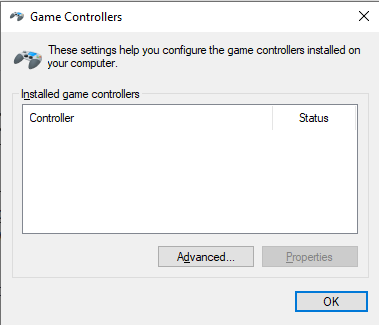
Here’s what to do step by step:
Step 1: Connect your gamepad via USB or Bluetooth.
Step 2: Press Win + R, type joy.cpl, hit Enter.
Step 3: Your controller should appear in the list with Status: OK.
If it does not show up, you do not have it connected or synced properly. Try a different USB port.
Step 4: Select your gamepad and click the Properties button. In the Properties window, go to the Test tab. Press each button, move each joystick, and test all triggers to see if they respond correctly on the visual representation.
Step 5: If something feels off, click the Settings tab and hit Calibrate. Follow the steps there to calibrate it, then test it again.
This method is completely free, requires no downloads, and works for Xbox, PlayStation, and most generic USB controllers.
Method 2: Test Gamepad Online with a Browser Tool
If you want a faster, more visual way to test your gamepad, browser-based tools are excellent. No installation needed , just open a webpage and start pressing buttons.
MyGamepadTester.com is one of the cleanest tools available for this. You open it in your browser, connect your controller, and it immediately shows you a live visual map of every input , buttons, analog sticks, triggers, and vibration. It works on Windows, macOS, Linux, and Chromebook, and supports all major browsers including Chrome, Firefox, and Safari.
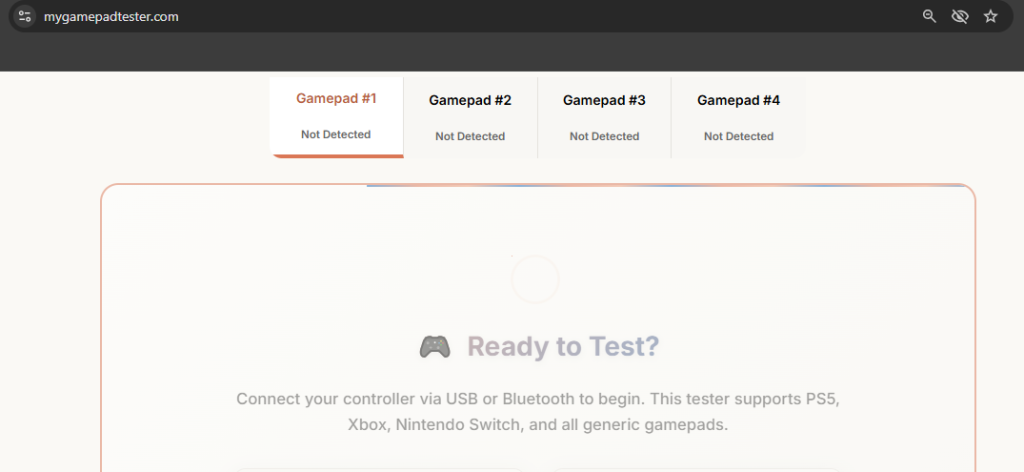
When you press any button on your controller or move the gamepad stick, you observe a blinking illustration and a “controller detected” message pops up, indicating the proper functioning of your controller.
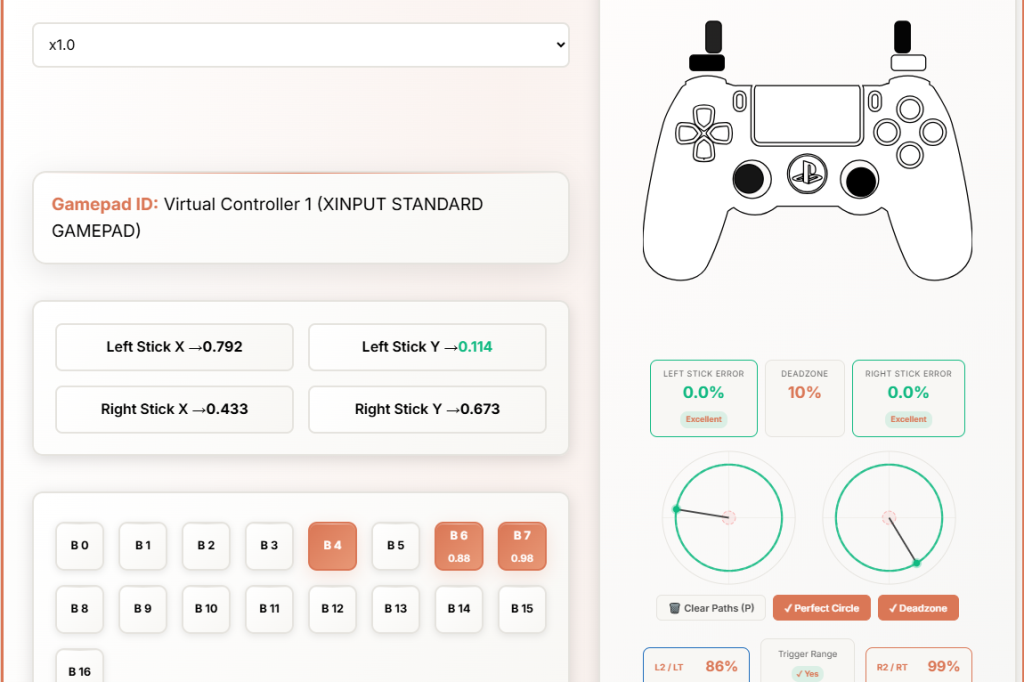
This is especially useful for catching stick drift , one of the most common gamepad problems. Rest the analog sticks in their default or centered position without touching them. Observe the display on the screen to see if the stick positions remain centered or if there is any movement occurring without your input. If the stick moves on screen while you’re not touching it , you have drift.
If your controller vibrates, you can also test the vibration motor , the tool will vibrate the controller in your hand so you can confirm it’s working.
Online gamepad testers are great for a quick health check before gaming sessions or after buying a used controller.
Method 3: Test Gamepad Inputs in a Real Game
Sometimes the most practical test is just launching a game. This confirms whether your gamepad works end-to-end, not just at the driver level.
But here’s something important to know: if your controller is detected by a gamepad tester but it isn’t working in a game, the problem likely lies with the game itself.
Many games don’t enable controller input by default. Go into the game’s options menu and look for a setting called “Input,” “Controller,” or “Gamepad.” Make sure it is set to “Enabled” or “On.”
So if your gamepad tests perfectly in joy.cpl or on MyGamepadTester.com but does nothing in your game , don’t panic. The controller is fine. The game just needs to be told to use it.
What to Check When Testing Your Gamepad
When you run any gamepad test, don’t just press one button and call it done. Here’s a proper checklist:
Analog Sticks – Move both sticks fully in all directions. Check for smooth movement and make sure they return to center when released. Any drift at rest position is a red flag.
Buttons – Press every single button individually. Check A, B, X, Y (or equivalent), bumpers, and the clickable stick buttons (L3/R3). Each one should register instantly.
Triggers – Pull both triggers slowly from 0% to 100%. You can view the functionalities of trigger buttons along with joysticks in real time during testing. Triggers that jump straight to 100% without a gradual increase likely need calibration or replacement.
D-Pad – Press all four directions. A broken D-pad direction is surprisingly common on older controllers.
Vibration – Test both rumble motors if your controller supports it. Weak or one-sided vibration often signals a failing motor.
Connection Stability – Move around with a wireless controller. Check if inputs drop or lag when you’re at distance.
Common Gamepad Problems and What They Mean
Stick Drift – The character moves on screen without you touching the stick. This is caused by worn analog stick sensors. Calibration can help temporarily, but drift usually gets worse over time.
Buttons Not Responding – If a keypress on the controller isn’t recognized, the button is probably broken. If no input is detected at all, your controller isn’t set up properly on your PC.
Controller Not Detected – Check your USB cable first. Some cables are charge-only and carry no data. Try a different port. For Bluetooth controllers, go to Settings, find your controller in the Bluetooth list, remove it, put it back into pairing mode, and pair it again from scratch. This resets the connection and can solve many problems.
Works in Windows, Not in Game – Almost always a game settings issue, not hardware. Check the game’s input settings as described above.
Which Testing Method Should You Use?
All three methods serve different purposes. Here’s a simple way to think about it:
Use joy.cpl when you want a quick Windows-level confirmation that your controller is detected and functional. It’s built in, reliable, and takes 30 seconds.
Use MyGamepadTester.com when you want a detailed, visual test of every input including stick drift, trigger sensitivity, and vibration. It’s the best option for diagnosing specific hardware issues or checking a used controller before trusting it.
Use in-game testing when you’ve already confirmed the controller works at the system level but something feels off during actual gameplay. At that point, it’s usually a game configuration issue.
A Note on Controller Compatibility
Browser-based gamepad testers support all leading operating platforms like Windows 10, 7, 11, macOS, Linux, and Chromebook, and are compatible with all browsers including Google Chrome, Firefox, and Safari.
Xbox controllers work natively on Windows with zero driver setup. PlayStation controllers need either the official Sony driver or a third-party tool like DS4Windows for full functionality. Most generic USB gamepads work out of the box via Windows’ built-in HID drivers.
If your controller shows up in Device Manager but not in joy.cpl, you likely have a driver mismatch. Update the driver by right-clicking the device in Device Manager and selecting Update Driver.
My thoughts
Testing your gamepad takes less time than losing a match because of a broken trigger. Two minutes of testing saves you two hours of confusion , that’s just good math.
Whether you use Windows’ built-in joy.cpl, an online tool like MyGamepadTester.com, or just boot up a game , the important thing is that you actually verify your controller is working before you need it most.
Check the sticks. Test the triggers. Confirm the buttons. Then go play.
Sources: Microsoft Windows Support, AddictiveTips, MakeUseOf, DS4Windows Docs